MacBook External Display Not Working
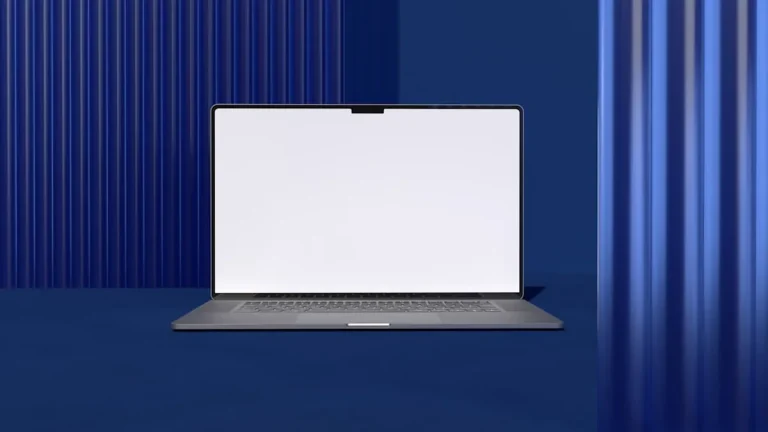
MacBook External Display Not Working – Many MacBook users rely on external displays for enhanced productivity, whether for work, gaming, or creative tasks. However, encountering issues with an external display can be frustrating and disruptive. Understanding the problem and how to resolve it is essential for a seamless experience.
What Is Happening
When you connect your MacBook to an external display, you expect a smooth transition to a larger screen. However, the external monitor may remain blank, flicker, or not be recognized at all. This issue can occur during the initial connection or even suddenly after a period of successful use. Regardless of when it happens, the inability to use an external display can hinder your workflow and limit your capabilities.
Why This Happens
There are several reasons why your MacBook may not recognize or properly display content on an external monitor. Common causes include:
- Cable or Adapter Issues: A faulty or incompatible cable or adapter is often the culprit. Ensure that the cable is securely connected and compatible with both your MacBook and the external display.
- Display Settings: Sometimes, the MacBook may not automatically switch to the external display. Incorrect display settings can lead to the external monitor not being detected.
- Software Glitches: Operating system bugs or application conflicts can interfere with display settings. Keeping your macOS updated is critical to prevent such issues.
- Hardware Malfunctions: In rare instances, hardware issues within the MacBook or the external display itself can prevent a proper connection.
- Power Supply: Ensure that the external monitor is powered on and functioning properly. A lack of power can prevent it from displaying any content.
Who Is Affected
The impact of an external display not working affects a wide range of users. Professionals who rely on multiple screens for multitasking or design work may find their productivity severely hindered. Gamers who wish to utilize larger screens for an immersive experience may encounter frustration. Additionally, educators and students who use external displays for presentations or collaborative work can face significant setbacks. Overall, anyone who depends on an external monitor for enhanced functionality and efficiency may be affected by this issue.
What You Can Do
- Check Connections: Begin by inspecting all connections. Ensure that the cable is firmly attached to both the MacBook and the external display. If you are using an adapter, verify that it is functioning correctly and is compatible with your devices.
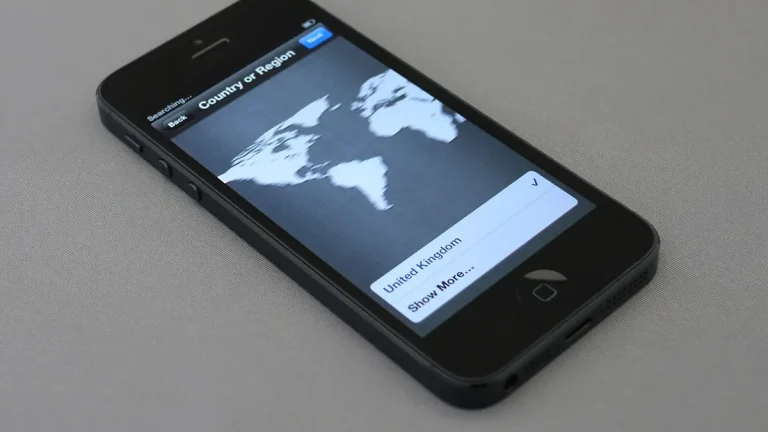
- Adjust Display Settings: Navigate to the “System Preferences” on your MacBook, select “Displays,” and check if the external monitor is being detected. If not, try clicking on the “Detect Displays” button. You may also need to adjust the resolution settings to ensure compatibility with the external monitor.
- Restart Devices: Sometimes, a simple restart can resolve connectivity issues. Restart both your MacBook and the external display to see if the problem persists.
- Update macOS: Keeping your operating system updated is crucial. Check for any available updates and install them, as they may contain fixes for display-related issues.
- Test with Another Display: If possible, connect your MacBook to a different external monitor to determine if the issue lies with the original display or your MacBook.
- Reset NVRAM/PRAM: Resetting the NVRAM or PRAM on your MacBook can sometimes resolve display issues. To do this, restart your MacBook and hold down the Command, Option, P, and R keys simultaneously until you hear the startup sound twice.
FAQ
Why won’t my external display turn on? Ensure that the display is connected correctly, powered on, and functioning. Check all cables and adapters for faults.
How do I adjust display settings on my MacBook? Go to “System Preferences,” select “Displays,” and check the settings for arrangement, resolution, and detection.
What if my MacBook still doesn’t recognize the external display? Try restarting both devices, updating macOS, or testing with a different monitor to isolate the issue.
Can a software update fix my external display issue? Yes, software updates often include fixes for bugs that can affect external display connectivity.
Is there a way to troubleshoot hardware issues? If you suspect a hardware problem, consider consulting with an Apple technician or authorized service provider for further assistance.