Laptop Bluetooth Not Working
Laptop Bluetooth Not Working – Bluetooth technology has become an essential feature in many laptops, allowing users to connect to various devices wirelessly. However, there are times when this functionality fails, leading to frustration and inconvenience. Understanding the situation and potential solutions can help you regain connectivity.
What Is Happening
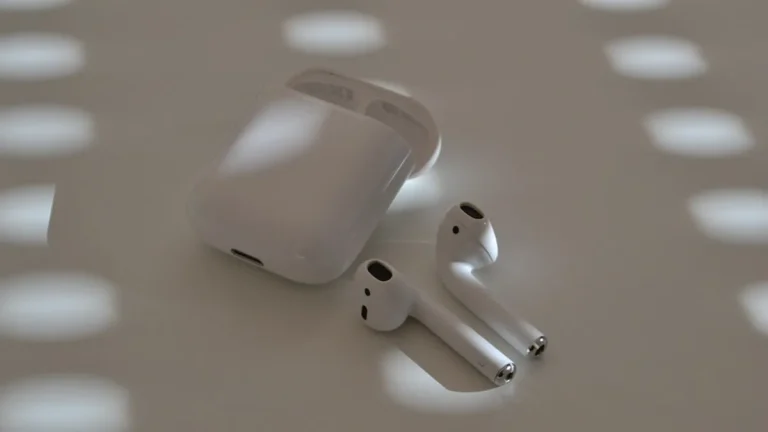
When the Bluetooth feature on your laptop is not working, you may find that you are unable to connect to devices such as wireless headphones, printers, or smartphones. This issue can manifest in several ways: your laptop may not recognize any Bluetooth devices, it could fail to pair with devices you’ve used previously, or it might show a “Bluetooth not available” error message. These problems can arise unexpectedly, disrupting your workflow and leisure activities.
Why This Happens
There are various reasons your laptop’s Bluetooth may stop functioning properly. Common causes include outdated or corrupted drivers, which are essential for enabling hardware communication. In some cases, the Bluetooth service may not be running correctly due to software conflicts or system updates that inadvertently disable the feature. Hardware issues, such as a malfunctioning Bluetooth adapter, can also be at fault. Furthermore, interference from other wireless devices or settings within your operating system can hinder Bluetooth connectivity.
Who Is Affected
The inability to use Bluetooth affects a wide range of users, including students, professionals, and casual users alike. Students may struggle to connect to wireless headphones or speakers while attending online classes, while professionals may find it challenging to print documents wirelessly or use Bluetooth peripherals during meetings. Casual users may become frustrated when trying to connect their laptops to their smartphones or smart home devices. In essence, anyone relying on Bluetooth for convenience or productivity may experience significant disruptions.
What You Can Do
- Check Bluetooth Settings: Ensure that Bluetooth is enabled in your system settings. Navigate to the Bluetooth settings and toggle the feature off and on again. This simple action can often resolve temporary glitches.
- Update Drivers: Visit the Device Manager on your laptop, locate the Bluetooth section, and check for updates to your Bluetooth drivers. Outdated drivers can lead to connectivity issues, and updating them may restore functionality.
FAQ
Why can’t my laptop find Bluetooth devices? There may be several reasons for this issue, including disabled Bluetooth settings, outdated drivers, or interference from other devices. Restarting your laptop and refreshing Bluetooth settings can often help.