How to Fix Slow Laptop Performance
How to Fix Slow Laptop Performance – If your laptop is running slower than usual, it can be frustrating and hinder your productivity. Fortunately, there are several ways to diagnose and resolve these performance issues, allowing you to get back to using your device efficiently.
What Is Happening
A slow laptop can manifest in various ways, such as extended loading times, lagging applications, and unresponsive software. These symptoms may occur sporadically or consistently, often making even simple tasks feel cumbersome. Understanding the underlying reasons for these performance issues is essential for effective troubleshooting.
Why This Happens
Several factors can contribute to a laptop’s slow performance. One common cause is insufficient memory (RAM), especially when running multiple applications simultaneously. When the RAM is full, the system resorts to using hard drive space, which is significantly slower. Another contributing factor could be an overloaded hard drive. If your hard drive is nearing its capacity, it can negatively impact the speed of data retrieval and processing.
Additionally, background applications can consume valuable resources, leading to a noticeable slowdown. Malware and viruses can also affect performance by using system resources for malicious activities. Lastly, outdated software, including the operating system and drivers, may not perform optimally, causing slowdowns and compatibility issues.
Who Is Affected
Slow laptop performance can affect a broad range of users. Students may struggle to complete assignments on time, while professionals may find it challenging to meet deadlines. Gamers experience lags that can ruin their gaming experience, and anyone relying on their laptop for daily tasks may encounter significant productivity losses. Ultimately, a slow laptop can lead to frustration and wasted time, impacting both personal and professional lives.
What You Can Do
- Free Up Disk Space: Start by removing unnecessary files and applications. Use built-in tools to uninstall programs that you no longer use. Consider transferring large files, such as videos and photos, to an external storage device or cloud storage to free up space.
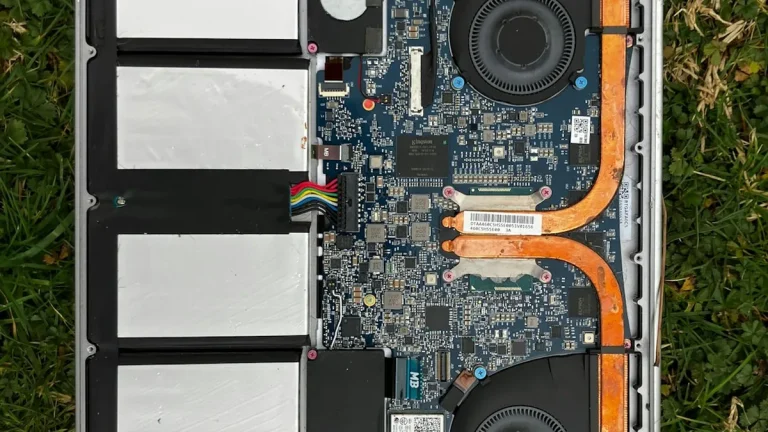
- Upgrade Your RAM: If your laptop allows for hardware upgrades, consider adding more RAM. This can significantly improve performance, especially if you multitask or run memory-intensive applications.
- Run a Malware Scan: Use reputable antivirus software to conduct a thorough scan of your system. Remove any detected malware or potentially unwanted programs that may be consuming resources.
- Update Software: Keep your operating system and all applications up to date. Software updates often include performance enhancements and bug fixes that can contribute to a smoother user experience.
- Optimize Startup Programs: Review the list of programs that launch at startup and disable those that are not necessary. This can help reduce boot time and improve overall performance.
FAQ
Why is my laptop slow despite having a good processor? A good processor can only perform optimally if there are sufficient resources available. Issues such as limited RAM, a full hard drive, or background processes can hinder the performance of even the best processors. Addressing these factors can lead to noticeable improvements.