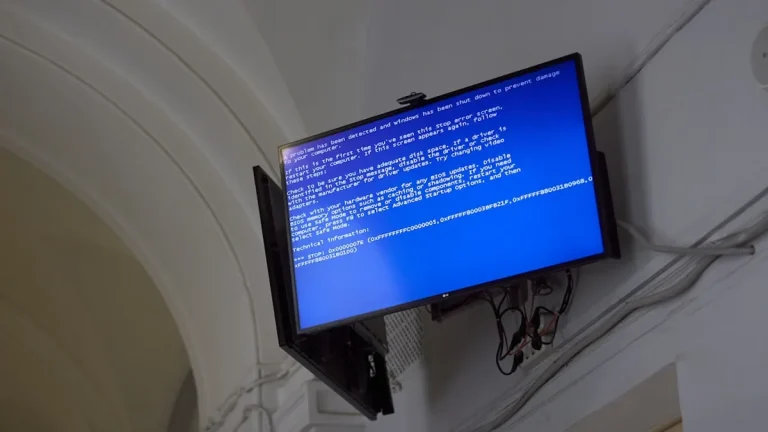
Fix Windows Blue Screen Error
Fix Windows Blue Screen Error – The Windows Blue Screen Error, often referred to as the “Blue Screen of Death” (BSOD), is a common issue that can disrupt your computing experience. This error signals serious problems with your operating system, requiring immediate attention to restore normal functionality.
What Is Happening
When you encounter a Blue Screen Error, your computer displays a blue screen with a message indicating that Windows has encountered a critical error and must restart. This abrupt halt can occur unexpectedly, causing potential data loss and interrupting your work. The specific error message may vary, but it typically includes an error code that can provide insight into the underlying issue.
Why This Happens
There are several reasons why a Blue Screen Error might occur. Some of the most common causes include:
- Hardware Failures: Faulty hardware components, such as RAM, hard drives, or graphics cards, can lead to instability in the operating system, triggering a BSOD.
- Driver Issues: Outdated or incompatible device drivers can cause conflicts within the system, resulting in a Blue Screen Error.
- Software Conflicts: Certain applications, particularly those that modify system settings or require extensive resources, can contribute to system instability.
- Windows Updates: Occasionally, updates to the Windows operating system can introduce bugs or compatibility issues, leading to critical failures.
- Malware or Viruses: Malicious software can corrupt system files or alter system settings, resulting in a BSOD.
Who Is Affected
The Blue Screen Error can affect anyone using a Windows operating system, from casual users to IT professionals. For home users, it can lead to frustration and lost productivity, especially if important work is interrupted. Businesses may face significant downtime, affecting operations and potentially leading to financial losses. Moreover, the error can also result in data loss, as unsaved information may be lost during unexpected system restarts. In some cases, repeated occurrences of BSOD can indicate deeper issues that may require professional technical support.
What You Can Do
- Check for Hardware Issues: Start by inspecting your hardware components. Ensure that all connections are secure and that there are no visible signs of damage. Running diagnostic tests on your RAM and hard drive can also help identify failing components that may be causing the errors.
- Update Drivers: Regularly updating your device drivers is essential for system stability. Use Windows Device Manager to check for driver updates or visit the manufacturer’s website for the latest versions. Uninstalling and reinstalling problematic drivers may also resolve conflicts leading to BSOD.
- Run Windows Troubleshooter: Use the built-in Windows troubleshooter to detect and fix common problems. Navigate to Settings > Update & Security > Troubleshoot, and follow the prompts to diagnose issues.
- Check for Malware: Run a complete system scan using a reputable antivirus program to ensure that your system is not infected with malware or viruses that could be causing the Blue Screen Errors.
- Restore System Settings: If the problem started after a recent change, consider using System Restore to revert to a previous state where your system was functioning properly. Access System Restore through Control Panel > Recovery.
FAQ
What should I do if the Blue Screen Error keeps happening? If you continue to experience Blue Screen Errors despite attempting the above solutions, consider seeking help from a professional technician. Persistent BSOD issues may indicate deeper hardware or software problems that require specialized knowledge to diagnose and fix.