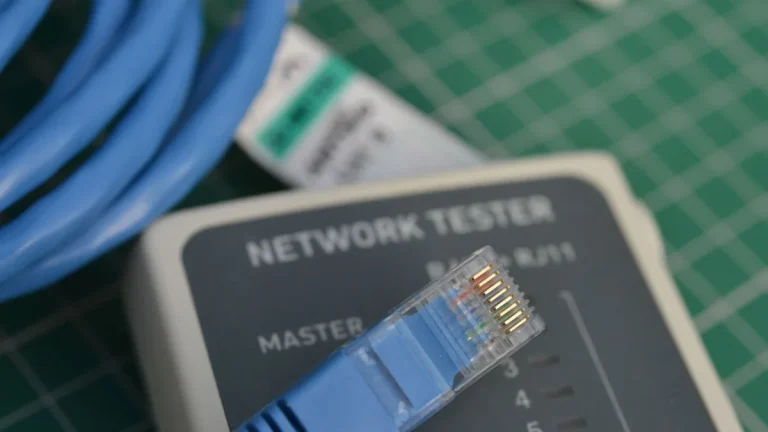
Fix Ethernet Not Working Issue
Fix Ethernet Not Working Issue – When you rely on a stable internet connection for work, gaming, or streaming, encountering an issue with your Ethernet connection can be frustrating. This article will guide you through understanding the problem, its causes, and steps to resolve it effectively.
What Is Happening
When your Ethernet connection is not working, your device cannot establish a reliable connection to the internet through your wired network. This may manifest as a complete lack of internet access, intermittent connectivity issues, or slow speeds. The Ethernet port on your computer may show no connection, or you may receive error messages indicating that the network cable is unplugged or that there is no valid IP address. The situation can disrupt your daily activities, making it crucial to diagnose and fix the problem promptly.
Why This Happens
Several factors can contribute to an Ethernet connection not functioning correctly. Some common causes include:
- Faulty Hardware: Damaged cables, malfunctioning network cards, or issues with the Ethernet port on your computer can prevent a successful connection. Additionally, the router or modem may also be at fault.
- Incorrect Network Settings: Misconfigured network settings, such as an incorrect IP address, subnet mask, or DNS settings, can lead to connectivity issues.
- Driver Issues: Outdated or corrupted network drivers can hinder your computer’s ability to communicate with the network hardware.
- Router or Modem Problems: Sometimes, the issue may stem from the router or modem, which might require a reset or firmware update to function properly.
- ISP Issues: There may be outages or disruptions in service from your Internet Service Provider (ISP) that can affect your Ethernet connectivity.
Who Is Affected
The inability to establish a functioning Ethernet connection can impact anyone who relies on a wired connection for their internet access. This includes remote workers, students engaged in online learning, gamers who depend on low latency for competitive play, and households that stream media. The disruption can lead to lost productivity, missed deadlines, and overall frustration, making it essential to address the issue as soon as possible.
What You Can Do
- Check Physical Connections: Ensure that the Ethernet cable is securely plugged into both your computer and the router or modem. If possible, try using a different Ethernet cable to rule out any physical damage.
- Restart Your Devices: Power cycle your modem and router by unplugging them for a few seconds and then plugging them back in. Also, restart your computer to refresh network settings.
- Update Network Drivers: Access the device manager on your computer and check for updates for your network adapter. If updates are available, install them and restart your computer.
- Check Network Settings: Go to your network settings and ensure that your Ethernet connection is set to obtain an IP address automatically. You can also reset your network settings to their defaults.
- Test with Another Device: If possible, connect a different device to the Ethernet cable to determine if the problem lies with your original device or the network itself.
FAQ
Why is my Ethernet connection limited or no connectivity? A limited or no connectivity message typically indicates an issue with your network settings, hardware, or the Ethernet cable itself. Start by checking physical connections and restarting your devices.